


The following graphic shows the object hierarchy from the RecoveryServicesVault down to the BackupRecoveryPoint.
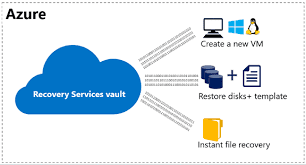

In the following script, the variable, $rp, is an array of recovery points for the selected backup item, from the past seven days. The array is sorted in reverse order of time with the latest recovery point at index 0.
To restore backup data, identify the backed-up item and the recovery point that holds the point-in-time data. Use the Restore-AzureRmRecoveryServicesBackupItemcmdlet to restore data from the vault to the customer’s account.
The following graphic shows the object hierarchy from the RecoveryServicesVault down to the BackupRecoveryPoint.

Select the VM
To get the PowerShell object that identifies the right backup item, start from the container in the vault, and work your way down the object hierarchy. To select the container that represents the VM,
$VaultName = “Vaultname”# Vault Name for Recovery Points (Backups)
$VmName = “vmname” # VM Name of the backup to be used
$StAcName = “storageaccountname” # Storage Account Name to be used for recovery
$StAcRGName = “storageaccountRG” #Storage Account Resource Group Name
$VaultName = “xxxx”# Vault Name for Recovery Points (Backups)
$VmName = “xxxxxx” # VM Name of the backup to be used
$StAcName = “xxxxx” # Storage Account Name to be used for recovery
$StAcRGName = “xxxx”# Storage Account Resource Group Name
$Region = “UK South”
$RestoredVmName = “xxxxx”# Name for Restored VM (Can be same name as source if souce has been deleted)
$destination_path = “C:tempvmconfig.json”# Path to download config file
#Select Vault
Get-AzureRmRecoveryServicesVault -Name $VaultName| Set-AzureRmRecoveryServicesVaultContext
#Select VM
$backupitem = Get-AzureRmRecoveryServicesBackupItem-BackupManagementType AzureVM-WorkloadType AzureVM-Name $VmName
Choose a Recovery point
Use the Get-AzureRmRecoveryServicesBackupRecoveryPointcmdlet to list all recovery points for the backup item. Then choose the recovery point to restore. If you are unsure which recovery point to use, it is a good practice to choose the most recent RecoveryPointType = AppConsistent point in the list.
In the following script, the variable, $rp, is an array of recovery points for the selected backup item, from the past seven days. The array is sorted in reverse order of time with the latest recovery point at index 0.
#### List available recovery points for up to 7 days old or alter value (-7)
$startDate = (Get-Date).AddDays(-7)
$endDate = Get-Date
#Select Recovery point
$rp = Get-AzureRmRecoveryServicesBackupRecoveryPoint -Item $backupitem-StartDate $startdate.ToUniversalTime() -EndDate$enddate.ToUniversalTime()
$rp | ft
#Select the restore point – 0 = Most recent RP, 1 = 2nd newest RP etc…
Write-Host “Select the restore point – latest is 0, next is 1 etc…” -ForegroundColor Red
$rpselected = ($input = Read-Host)
$rps = $rp[$rpselected]
#### Define Storage Account to be used
$restorejob = Restore-AzureRMRecoveryServicesBackupItem-RecoveryPoint $rps-StorageAccountName $StAcName-StorageAccountResourceGroupName $StAcRGName
#### Start Restore Job
$restorejob
#### Monitor job status
Do {
Start-Sleep -Seconds 180
Get-Date -Format T
$JobStatus = Get-AzureRmRecoveryServicesBackupJobDetails -job $restorejob
$JobStatus
$JobStatusCheck = $JobStatus.Status
} While ($JobStatusCheck -eq “InProgress”)
If ($JobStatusCheck -ne “Completed”) {
Write-Host “Seems Job has not completed successfully!”
exit
}
Once the Restore job has completed, use the Get-AzureRmRecoveryServicesBackupJobDetails cmdlet to get the details of the restore operation. The JobDetails property has the information needed to rebuild the VM.
PS C:> $restorejob = Get-AzureRmRecoveryServicesBackupJob -Job $restorejobPS C:> $details = Get-AzureRmRecoveryServicesBackupJobDetails -Job $restorejob
Create a VM from restored disks
After you have restored the disks, use these steps to create and configure the virtual machine from disk.
[!NOTE] To create encrypted VMs from restored disks, your Azure role must have permission to perform the action, Microsoft.KeyVault/vaults/deploy/action. If your role does not have this permission, create a custom role with this action.
1. Query the restored disk properties for the job details.
PS C:> $properties = $details.properties
PS C:> $storageAccountName = $properties[“Target Storage Account Name”]
PS C:> $containerName = $properties[“Config Blob Container Name”]
PS C:> $blobName = $properties[“Config Blob Name”]
2. Set the Azure storage context and restore the JSON configuration file.
PS C:> Set-AzureRmCurrentStorageAccount -Name $storageaccountname -ResourceGroupName “testvault”
PS C:> $destination_path = “C:vmconfig.json”
PS C:> Get-AzureStorageBlobContent -Container $containerName -Blob $blobName -Destination $destination_path
PS C:> $obj = ((Get-Content -Path $destination_path -Raw -Encoding Unicode)).TrimEnd([char]0x00) | ConvertFrom-Json
3. Use the JSON configuration file to create the VM configuration.
PS C:> $vm = New-AzureRmVMConfig -VMSize $obj.’properties.hardwareProfile’.vmSize -VMName “testrestore”
4. Attach the OS disk and data disks. Depending on the configuration of your VMs, refer to the relevant section to view respective cmdlets:
Non-managed, non-encrypted VMs
Use the following sample for non-managed, non-encrypted VMs.
PS C:> Set-AzureRmVMOSDisk -VM $vm -Name "osdisk" -VhdUri $obj.'properties.StorageProfile'.osDisk.vhd.Uri -CreateOption "Attach"PS C:> $vm.StorageProfile.OsDisk.OsType = $obj.'properties.StorageProfile'.OsDisk.OsTypePS C:> foreach($dd in $obj.'properties.StorageProfile'.DataDisks){$vm = Add-AzureRmVMDataDisk -VM $vm -Name "datadisk1" -VhdUri $dd.vhd.Uri -DiskSizeInGB 127 -Lun $dd.Lun -CreateOption "Attach"} Managed, non-encrypted VMs
For managed non-encrypted VMs, you’ll need to create managed disks from blob storage, and then attach the disks. For in-depth information, see the article, Attach a data disk to a Windows VM using PowerShell. The following sample code shows how to attach the data disks for managed non-encrypted VMs.
PS C:> $storageType = "StandardLRS"PS C:> $osDiskName = $vm.Name + "_osdisk"PS C:> $osVhdUri = $obj.'properties.storageProfile'.osDisk.vhd.uriPS C:> $diskConfig = New-AzureRmDiskConfig -AccountType $storageType -Location "West US" -CreateOption Import -SourceUri $osVhdUriPS C:> $osDisk = New-AzureRmDisk -DiskName $osDiskName -Disk $diskConfig -ResourceGroupName "test"PS C:> Set-AzureRmVMOSDisk -VM $vm -ManagedDiskId $osDisk.Id -CreateOption "Attach" -WindowsPS C:> foreach($dd in $obj.'properties.storageProfile'.dataDisks) { $dataDiskName = $vm.Name + $dd.name ; $dataVhdUri = $dd.vhd.uri ; $dataDiskConfig = New-AzureRmDiskConfig -AccountType $storageType -Location "West US" -CreateOption Import -SourceUri $dataVhdUri ; $dataDisk2 = New-AzureRmDisk -DiskName $dataDiskName -Disk $dataDiskConfig -ResourceGroupName "test" ; Add-AzureRmVMDataDisk -VM $vm -Name $dataDiskName -ManagedDiskId $dataDisk2.Id -Lun $dd.Lun -CreateOption "Attach"} 5. Set the Network settings.
PS C:> $nicName=”p1234″
PS C:> $pip = New-AzureRmPublicIpAddress -Name $nicName -ResourceGroupName “test” -Location “WestUS” -AllocationMethod Dynamic
PS C:> $vnet = Get-AzureRmVirtualNetwork -Name “testvNET” -ResourceGroupName “test”
PS C:> $nic = New-AzureRmNetworkInterface -Name $nicName -ResourceGroupName “test” -Location “WestUS” -SubnetId $vnet.Subnets[$subnetindex].Id -PublicIpAddressId $pip.Id
PS C:> $vm=Add-AzureRmVMNetworkInterface -VM $vm -Id $nic.Id
6. Create the virtual machine.
PS C:> New-AzureRmVM -ResourceGroupName “test” -Location “WestUS” -VM $vm