



Azure Security Center is one of the primary tools in Azure used to detect threats. Security Center allows organizations to control and monitor the security of all of their running resources using intelligent threat detection to protect them from cyberattacks. As part of that threat detection, Security Center provides recommendations to close potential security holes and ensure compliance with your corporate policy and security guidelines.
Security Center provides an easy-to-read dashboard which shows compliance, security health, and security alerts. This is available right off the main Azure portal dashboard, or through the search window.


Azure Security Center is fully integrated with Azure Policy. Security Center can monitor policy compliance across all of your subscriptions using a default set of security policies. A security policy defines the set of controls that are recommended for resources within the specified subscription or resource group. These security policies define the desired configuration of your workloads and help to ensure compliance with company or regulatory security requirements. These defaults can be customized and defined to match your specific organizational needs.
Azure management groups provide the ability to efficiently manage access, policies, and reporting on groups of subscriptions, as well as effectively manage the entire Azure estate by performing actions on the root management group. Each Azure AD tenant is given a single top-level management group called the root management group. This root management group is built into the hierarchy to have all management groups and subscriptions fold up to it. This group allows global policies and Azure role assignments to be applied at the directory level.
The root management group is created automatically when you do any of the following actions:
- Opt in to use Azure management groups by navigating to Management Groups in the Azure portal.
- Create a management group via an API call.
- Create a management group with PowerShell.
You can use Azure Policy to enable Azure Security Center on all the Azure subscriptions within the same management group (MG). This is more convenient than accessing them individually from the portal and works even if the subscriptions belong to different owners.
Here are a few of the built-in security policies that Security Center monitors:
- Secure transfer to storage accounts should be enabled
- Azure AD administrator for SQL server should be provisioned
- Client authentication should use Azure Active Directory
- Diagnostics logs in Key Vault should be enabled
- System updates should be installed on your machines
- Audit missing blob encryption for storage accounts
- Just-In-Time network access control should be applied on virtual machines
It’s recommended to leave all the security policies enabled, however, sometimes a recommendation will be generated that isn’t relevant to your environment. You can turn it off by disabling the security policy that is sending the recommendation.
- In the Policy & Compliance section, select Security policy.
- Select the subscription or management group that shouldn’t show the recommendation.
- Select the assigned policy:

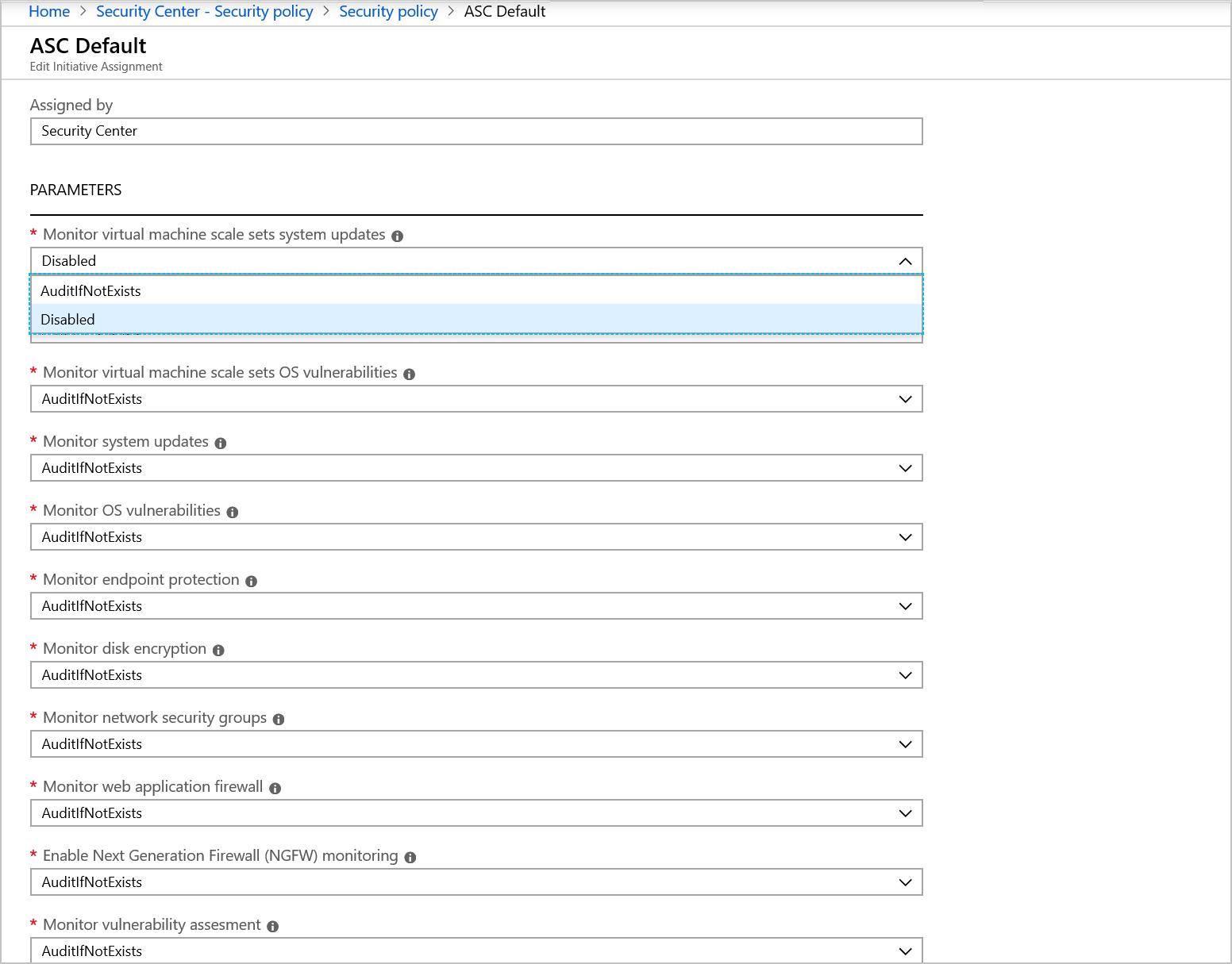
- In the PARAMETERS section, locate the policy that sends the recommendation you want to disable, and from the dropdown list, select Disabled.
- Select Save to persist your changes. The change can take up to 12 hours to replicate through the Azure infrastructure.